
Jet Breadbox
A complete Commodore 64, running inside Jet64.
Breadbox is a from-scratch C64 emulator built as a Jet64 cart. It emulates the 6510, VIC-II, SID, both CIAs, the keyboard, joysticks, disk drives and IEC bus. It supports PAL and NTSC, four mounted drives, save states, real ROM overrides, an optional cycle-exact VIC-II and a full 1541 driven by its own emulated 6502.
This browser edition is free, self-contained and fully usable. It is also a demonstration of the machine beneath it: Jet64 carts are ordinary C programs running against a small virtual computer, and that computer is capable of hosting another computer in full. Emulators inside emulators!
Start here
- At the C64 prompt, type
LOAD"*",8and press Enter. - When loading finishes, type
RUNand press Enter.
This opens the original public-domain Jet64 welcome disk: a small 6502 program with an on-screen guide to the emulator. Nothing else is required.
Windowed first, fullscreen second
The web player has two working modes. File import belongs to the windowed player;
the Page Down control layer belongs to fullscreen. Prepare the machine
in this order:
- Remain windowed and drag in every
.d64disk and owned ROM dump you intend to use. - When the files have been added, press
Ctrl/Cmd + Shift + Fto enter fullscreen. - In fullscreen, use the
Page Downcontrols to mount disks, select drives and configure the emulator.
File importing works only while windowed. The Page Down controls work
only in fullscreen. If you need another file later, leave fullscreen with
Ctrl/Cmd + Shift + F, add it, then return to fullscreen.
The C64 keyboard
Normal typing goes to the C64. The default symbolic keymap is best
for entering BASIC because it produces the character printed on your modern
keyboard. Press End to switch to the positional keymap,
which follows the physical C64 key positions and is often better for games.
Enter— RETURNBackspaceorDelete— DELArrow keys— the C64 cursor keysEsc— RUN/STOPHome— HOMECtrl— CTRLAlt/Option— Commodore keyPage Up— RESTORE
If your browser consumes a key, open the complete on-screen C64 keyboard with
Page Down + K. Click keys to hold them, build any combination you
need, then click PRESS. CLR releases the held keys;
CLOSE or Page Down dismisses the keyboard.
Disks in the browser
While the emulator is windowed, drag every .d64 you need onto the
running player. Then enter fullscreen and press Page Down + B to open
the disk browser and mount them. Imported files are saved in this browser only.
They are never uploaded.
The ADD DISKS… action uses the browser's file importer, which works only in windowed mode. The simplest web workflow is therefore to add your disks before fullscreen. To add another later, leave fullscreen, drag it onto the player, then return to fullscreen and reopen the disk browser.
Up/Down— choose a diskLeft/Right— choose drive 8, 9, 10 or 11Home— return to the first itemEnter— mount the selected diskDeleteorBackspace— remove an imported disk; pressEnterto confirmEscorPage Down— close the disk browser
For a two-disk game, mount side A in drive 8 and side B in drive 9. The software
can then find the second disk without a manual swap. The default virtual drive is
fast and convenient. With your own 1541.rom, the emulator can instead
run a complete 1541 for fastloaders, custom disk code and protected media.
Page Down controls
These controls work in fullscreen mode. Hold
Page Down while pressing the second key.
These commands are kept outside the C64 keyboard matrix, so they never appear on
the BASIC command line.
Media and machine
Page Down + B— open the disk browser at drive 8Page Down + 8— choose a disk for drive 8Page Down + 9— choose a disk for drive 9Page Down + N— mount the next disk in drive 8Page Down + R— restore the bundled welcome disk to drive 8Page Down + O— ROM import request; on this web build, add ROMs by drag-and-drop while windowed before entering fullscreenPage Down + K— open the on-screen C64 keyboardPage Down + Up— RESTORE; a compact-keyboard alternative toPage Up
State and reset
Page Down + S— save the complete machine statePage Down + L— load the saved stateInsertorPage Down + Backspace— soft resetShift + InsertorPage Down + Shift + Backspace— hard reset / power cycle
On a Mac, the key labelled Delete normally reports as Backspace,
so the hard-reset chord is Page Down + Shift + Delete. A hard reset
clears C64 RAM and re-reads any newly imported ROMs.
Emulation options
Page Down + D— fast virtual drive / full 1541; the full drive requires1541.romPage Down + V— scanline / cycle-exact VIC-IIPage Down + P— Pepto / Colodore palettePage Down + T— PAL / NTSCPage Down + J— place the primary controller on joystick port 2 / port 1Page Down + W— warp full-1541 loading while the drive motor is runningPage Down + I— show / hide the live input monitor
Using your own C64 ROMs
Why doesn't it look exactly like the C64 I remember? This legal browser build contains no copyrighted Commodore firmware. It ships with a complete MIT-licensed BASIC and clean-room OpenROMs replacements for the KERNAL and character generator, so it works immediately without redistributing Commodore's ROMs.
For the most authentic appearance and the broadest software compatibility, drag ROM dumps from a C64 you own onto the emulator while it is windowed. Add every ROM you need before entering fullscreen. Accepted filenames are:
basic.binorbasic.rom— 8 KiBkernal.binorkernal.rom— 8 KiBchargen.bin,chargen.romorcharacters.bin— 4 KiB1541.romor1541.bin— 16 KiB
When the files have been imported, enter fullscreen and perform a hard reset:
Page Down + Shift + Backspace. The new ROMs remain private to your
browser and persist there for later visits.
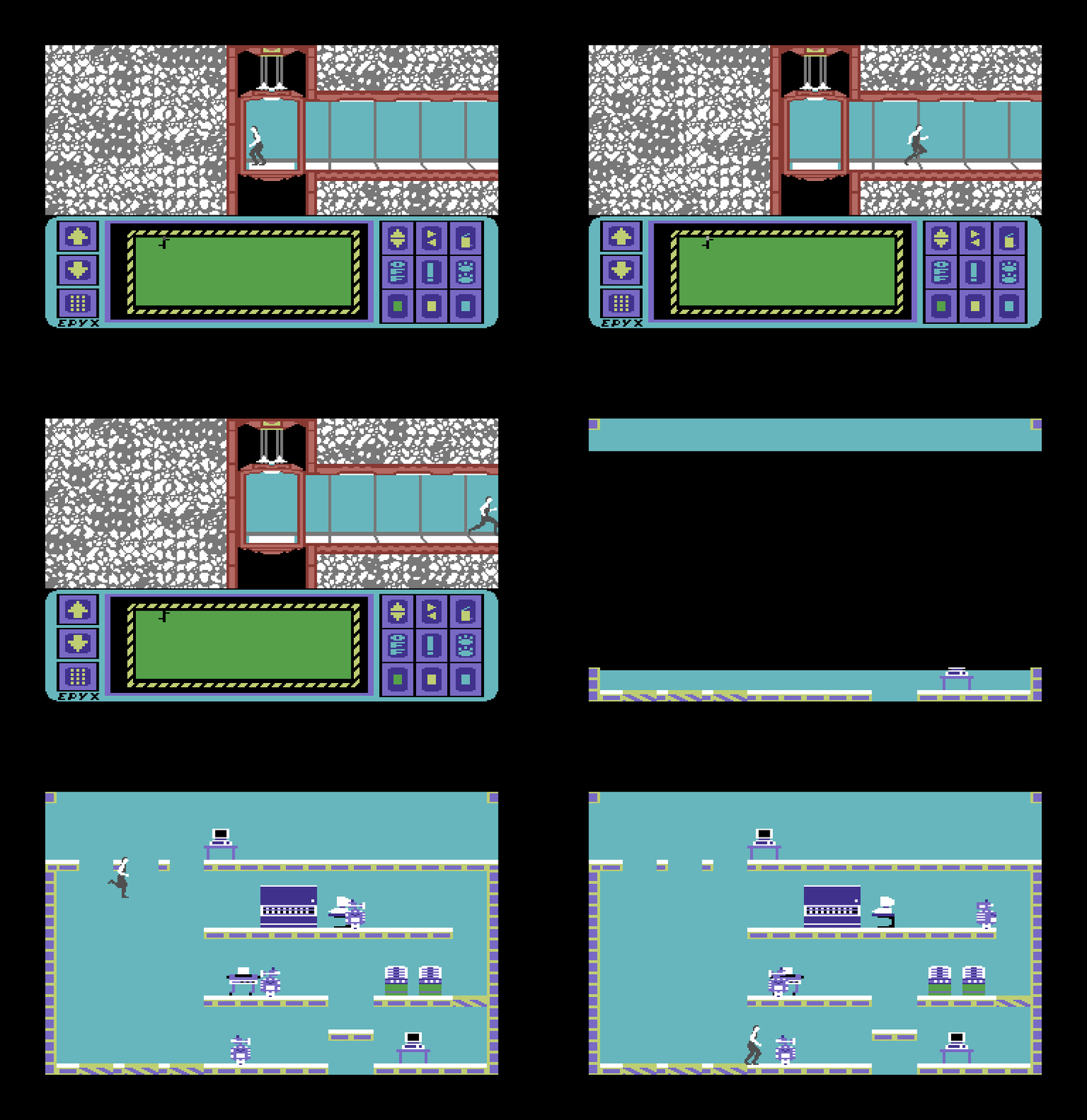
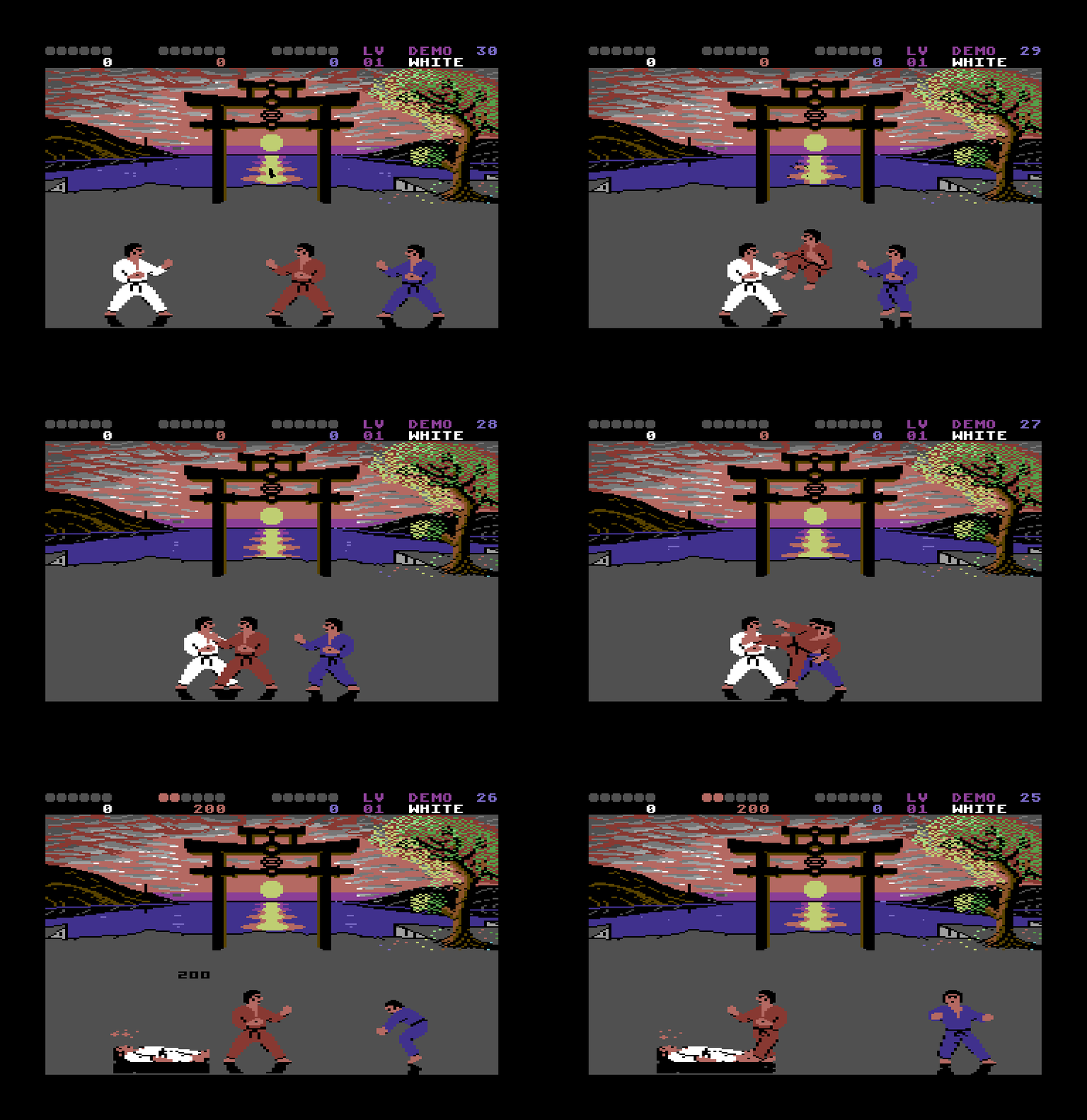
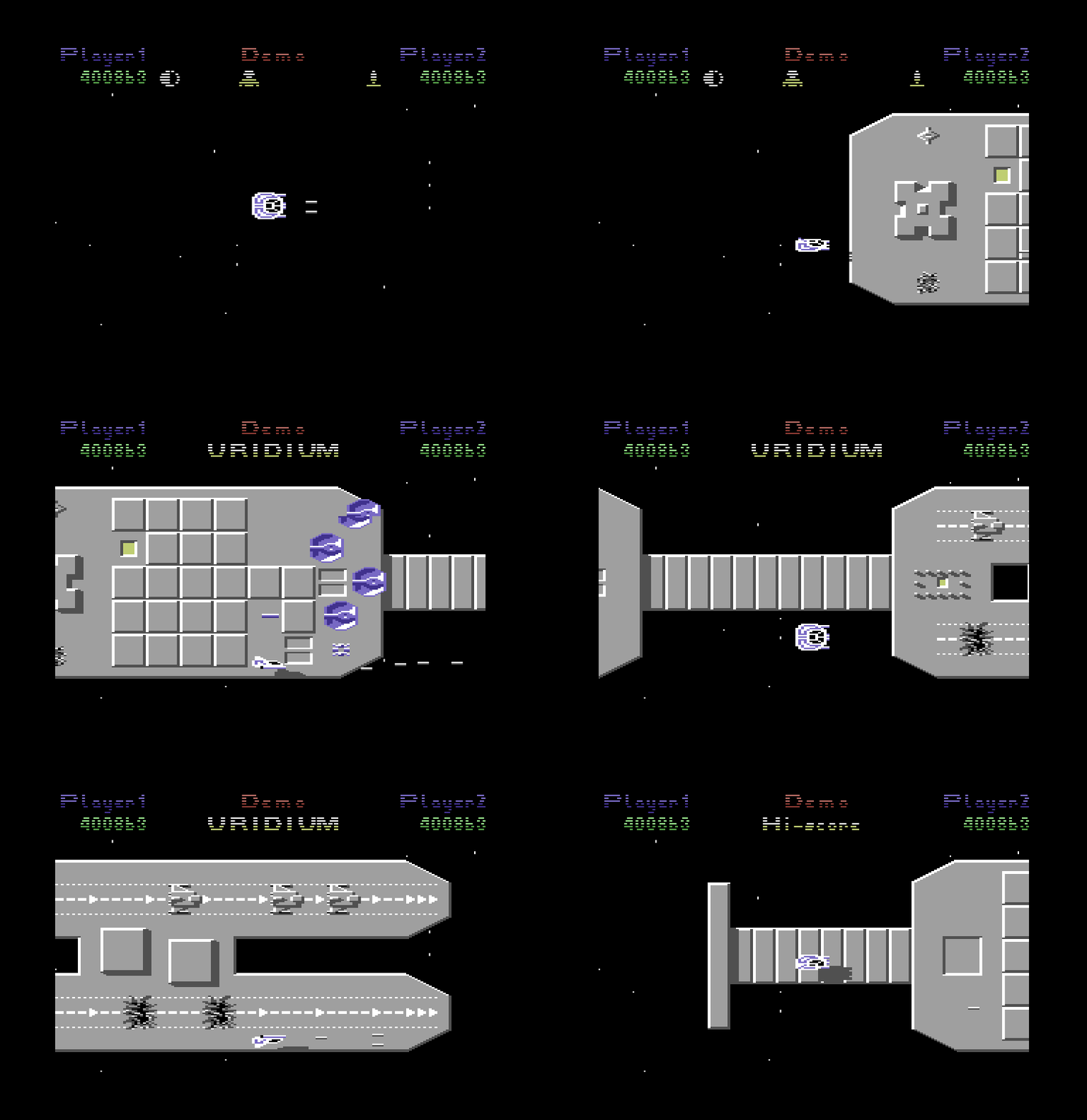
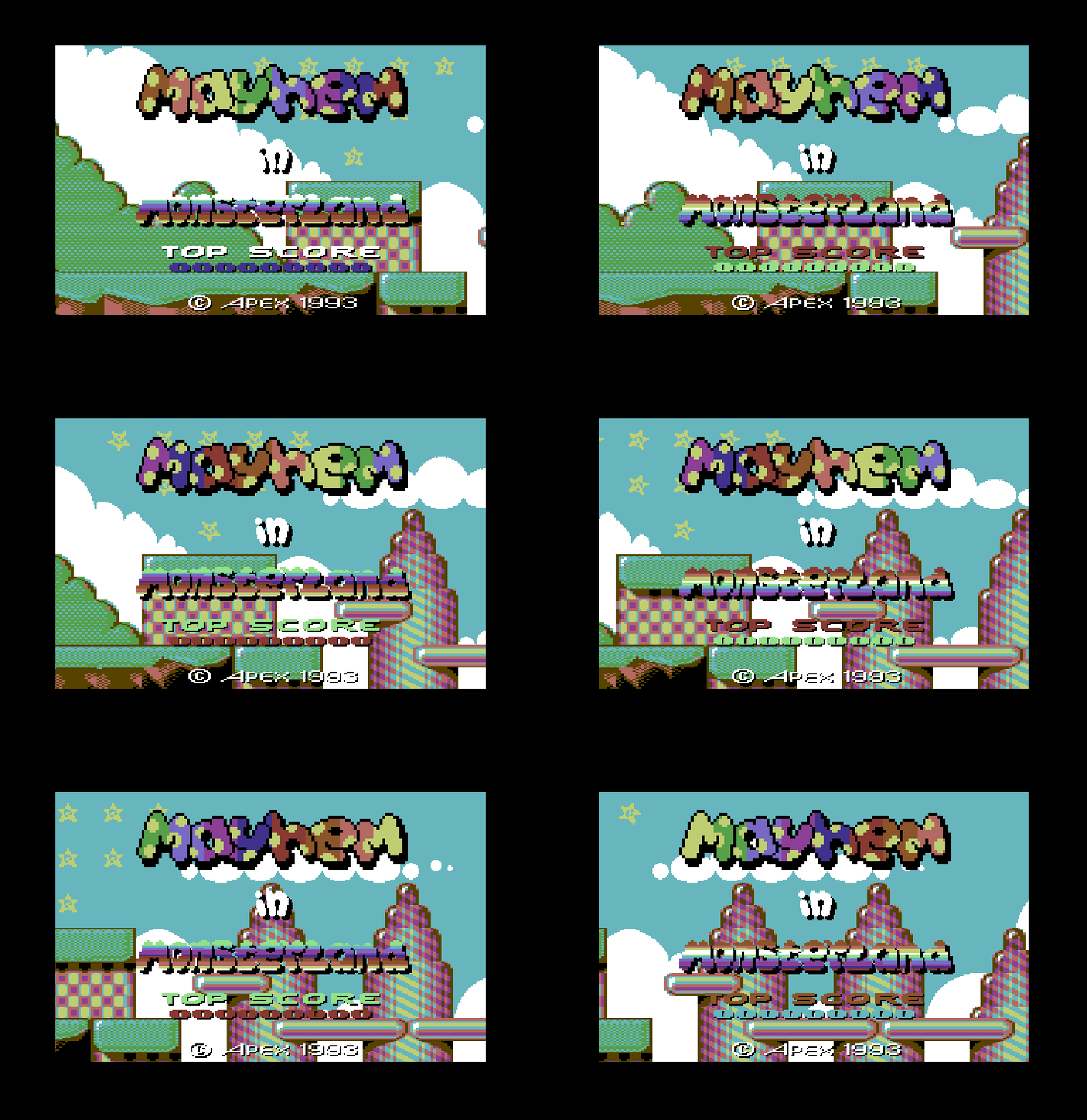
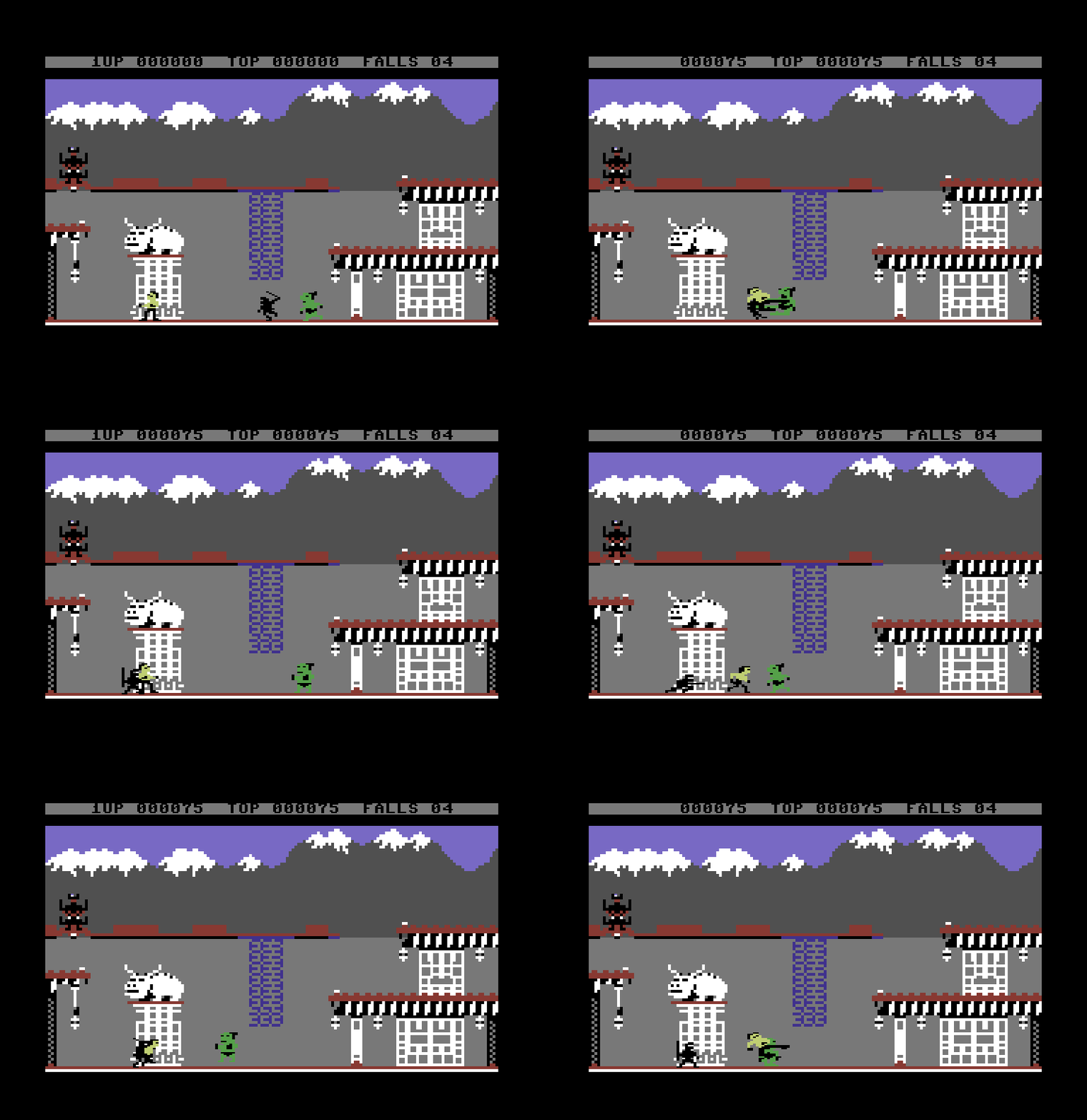
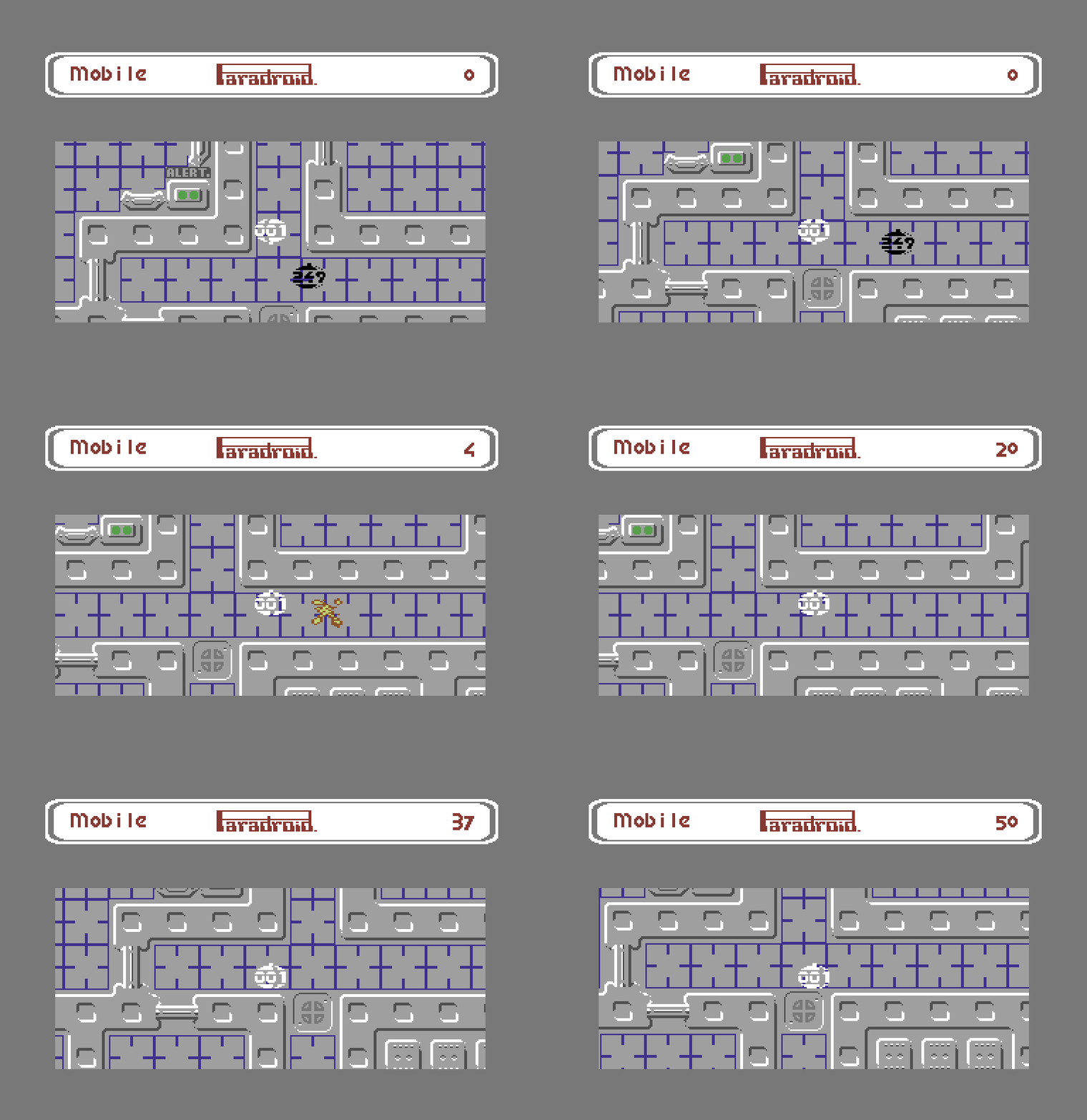
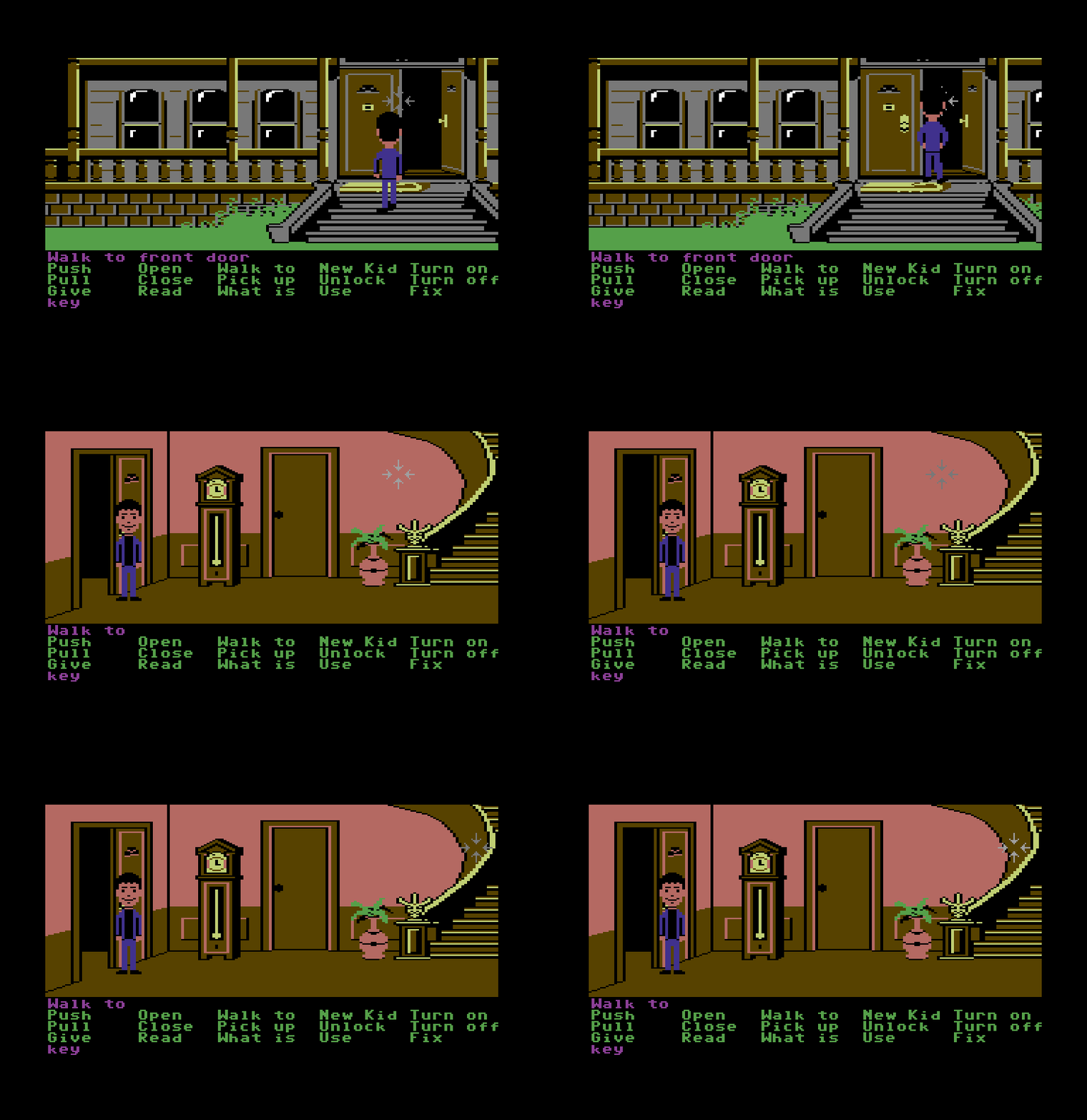
This emulator has broad software compatibility, all the game gifs featured on this page are captured directly from this machine.
Gamepad
The first controller uses C64 joystick port 2 by default. A second controller
automatically uses the other port. Use Page Down + J when a game
expects its main joystick in port 1.
D-padorleft stick— joystickAorB— fireY— C64 F1X— C64 F3Left bumper— C64 F5Right bumper— C64 F7
On the on-screen keyboard, the D-pad or left stick moves, A holds a
key, Start presses the selected combination and B closes it.
Breadbox is not a recording or a simulation - it is the machine: processor, video, sound, interrupts, buses, disks and input, running live in a web page. It was made with Jet64 as both a useful emulator and a clear statement of what a Jet64 cart can be.
Licences. No Commodore firmware is included. This build bundles the
MEGA65 OpenROMs images — KERNAL,
character generator and a fallback BASIC — unmodified under the LGPL-3.0
(© Paul Gardner-Stephen; Roman Standzikowski), and Microsoft 6502 BASIC v1.1 under
the MIT licence (© Microsoft). The full notices, the LGPL and the
GNU GPL it extends, and the pinned upstream commits their corresponding source is
obtained from, travel with the build in THIRD_PARTY_LICENSES.txt.
Leave a comment
Log in with itch.io to leave a comment.